CODESYS Visualization: A Step-by-Step Guide to Basic HMI Creation
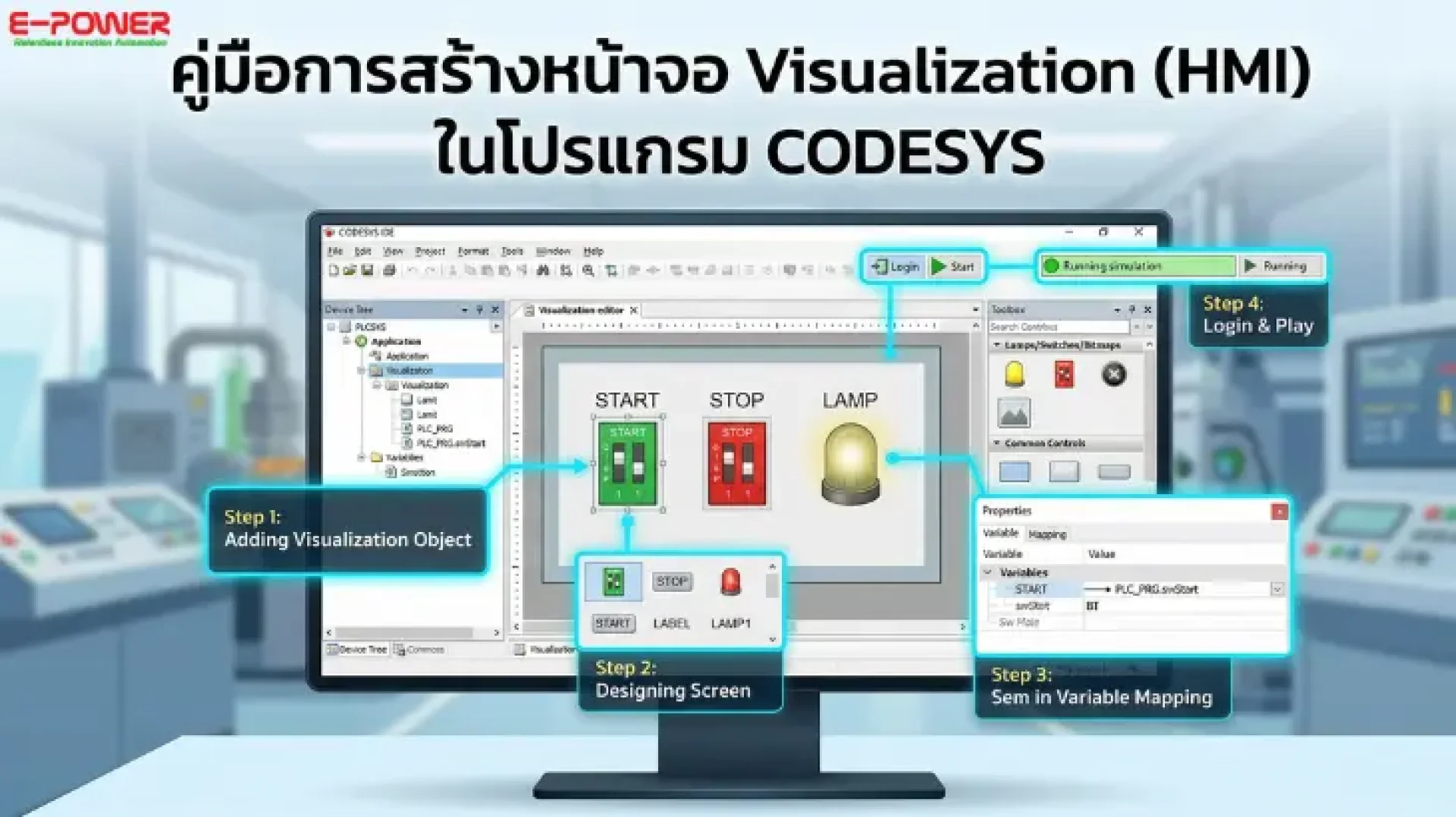
In the development of Automation systems using PLC, having a display screen that allows users to conveniently command and monitor the system is essential. CODESYS software includes a Visualization function, which acts as a built-in HMI (Human Machine Interface). This enables programmers to efficiently design control panels, test operations, and monitor various statuses.
Today, we will learn how to create a basic Visualization screen in CODESYS through 4 simple steps to apply to your projects.
Step 1: Adding the Visualization Function to Your Project
- Go to the Device Tree and locate the Application section.
- Right-click on Application, select Add Object, and then click on Visualization.
- A window will appear to name the screen (you may use the default name provided). Click Add to create the design window.
Step 2: Designing the Screen and Adding Control Elements
Once in the Visualization editor, you can drag and drop various components from the Toolbox immediately:
- Add Switches: Go to Lamps/Switches/Bitmaps, then drag a Dip Switch onto the screen (e.g., to create Start and Stop buttons).
- Add Labels: Go to Common Controls and drag a Label to write descriptive text for your buttons. You can customize the Font Size and style as needed.
- Add Status Lamps: Return to Lamps/Switches/Bitmaps and drag a Lamp to use as an output indicator.
Step 3: Variable Mapping (Linking Screen Elements to PLC Code)
To ensure the buttons and lamps on the screen interact with your PLC program, you must bind them to variables:
- Click on the first switch, then go to the Properties window on the right under the Variable section.
- Click the variable selection button (...) and choose the command variable (e.g., swStart).
- Repeat the process for the second switch, binding it to the stop variable (e.g., swStop).
- Click on the Lamp and bind it to the output variable (e.g., Lamp).
Step 4: Compiling and Testing (Login & Play)
- Click the Combine button (computer icon) to verify the program's accuracy.
- Click Login from the top toolbar and select Login with download to transfer the simulation.
- Press the Play (Start) button to begin execution.
- Test by clicking the Start and Stop switches on your Visualization screen. If the lamp lights up and turns off according to your logic, the setup is complete.
Creating a Visualization screen in CODESYS not only makes machine simulation more realistic but also helps operators understand automation systems more easily.
If you are interested in PLC, Automation, and professional CODESYS software usage, E-Power Service Co., Ltd. is ready to provide consultation and solutions tailored to your industrial needs. Find more products and services at www.epower.co.th.
Join our Facebook group, "CODESYS AI & Robotics Developer Community" to exchange knowledge, experiences, and useful techniques with our engineering team!