Guide to Using Function Blocks in CODESYS for Professional PLC Programming
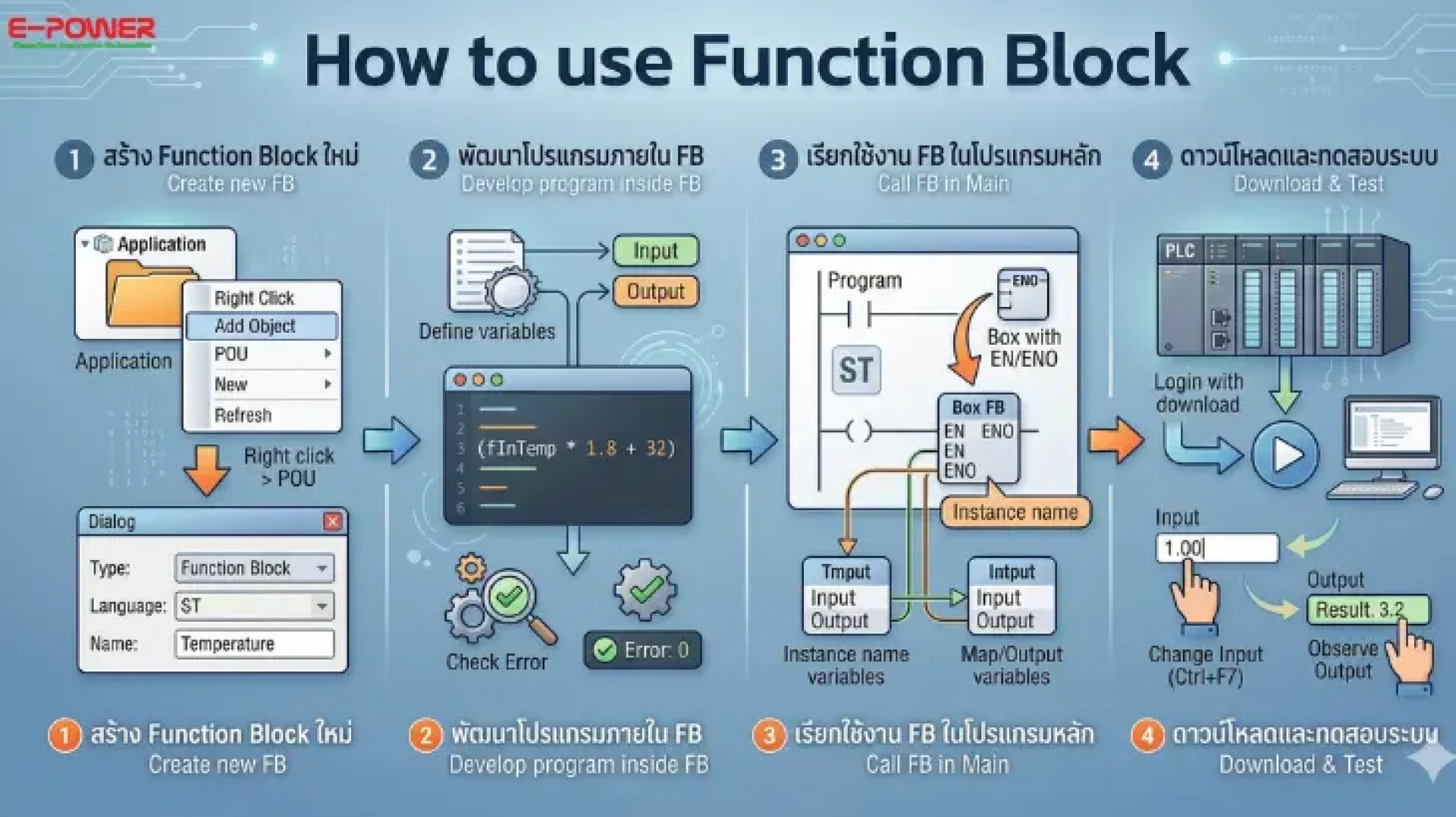
In PLC programming using CODESYS software, if users aim to enhance main program efficiency or isolate specific functions for easier management and unlimited Reusability (Reuse), utilizing Function Blocks (FB) is the most effective approach. The operational steps are as follows:
Step 1: Creating a New Function Block
- Access the program structure in the Application section.
- Right-click on Application, select Add Object, and then click POU (Program Organization Unit).
- In the appearing window, specify the program name (e.g., Temperature).
- Under Type, select the Function Block format.
- Choose the Programming Language based on your expertise (such as Structured Text - ST or Ladder), then press Add.
Step 2: Developing the Program within the Function Block
- Once the FB creation is complete, define the variables and write the instruction sets as follows:
- Clearly define input variables (Input) and output variables (Output).
- Write the instruction set or operational equations (e.g., a temperature conversion equation).
- Upon completion, click the Combine button (computer icon) to perform a syntax check (Check Error). If the system reports "Error is 0," the instruction set is ready for use.
Step 3: Implementing the Function Block in the Main Program
- Return to the main program page (e.g., PLC_PRG).
- Select the Box with EN/ENO command from the Toolbox to place it in the programming area.
- Click on the command box, then click the ellipsis button (...) to select the previously created Function Block (e.g., Temperature) and press OK.
- Specify the Function Block instance name in the Auto Declare window and press OK.
- Assign variable values to the Input and Output fields according to the system's objectives.
Step 4: Program Download (Login) and System Testing
- Press the Combine button again for a final check.
- Click the Login button from the toolbar and select Login with download to transfer the program to the PLC.
- Press the Start (Play) button to begin program execution.
- Test by changing values in the Input field (using Ctrl + F7 to write values) and observe the Output results to confirm the program operates correctly according to the defined equations.
The use of Function Blocks not only ensures a well-organized and easy-to-maintain instruction structure but also significantly reduces development time for large-scale and highly complex projects.
If you are interested in in-depth CODESYS techniques or looking for PLC solutions that support international software standards, you can consult with expert engineers from E-Power Service Co., Ltd. via LINE ID: @epower or join the discussion and share knowledge at the Facebook Group: CODESYS AI & Robotics Developer Community.