Connecting EC201S LicOS PLC with CODESYS Software
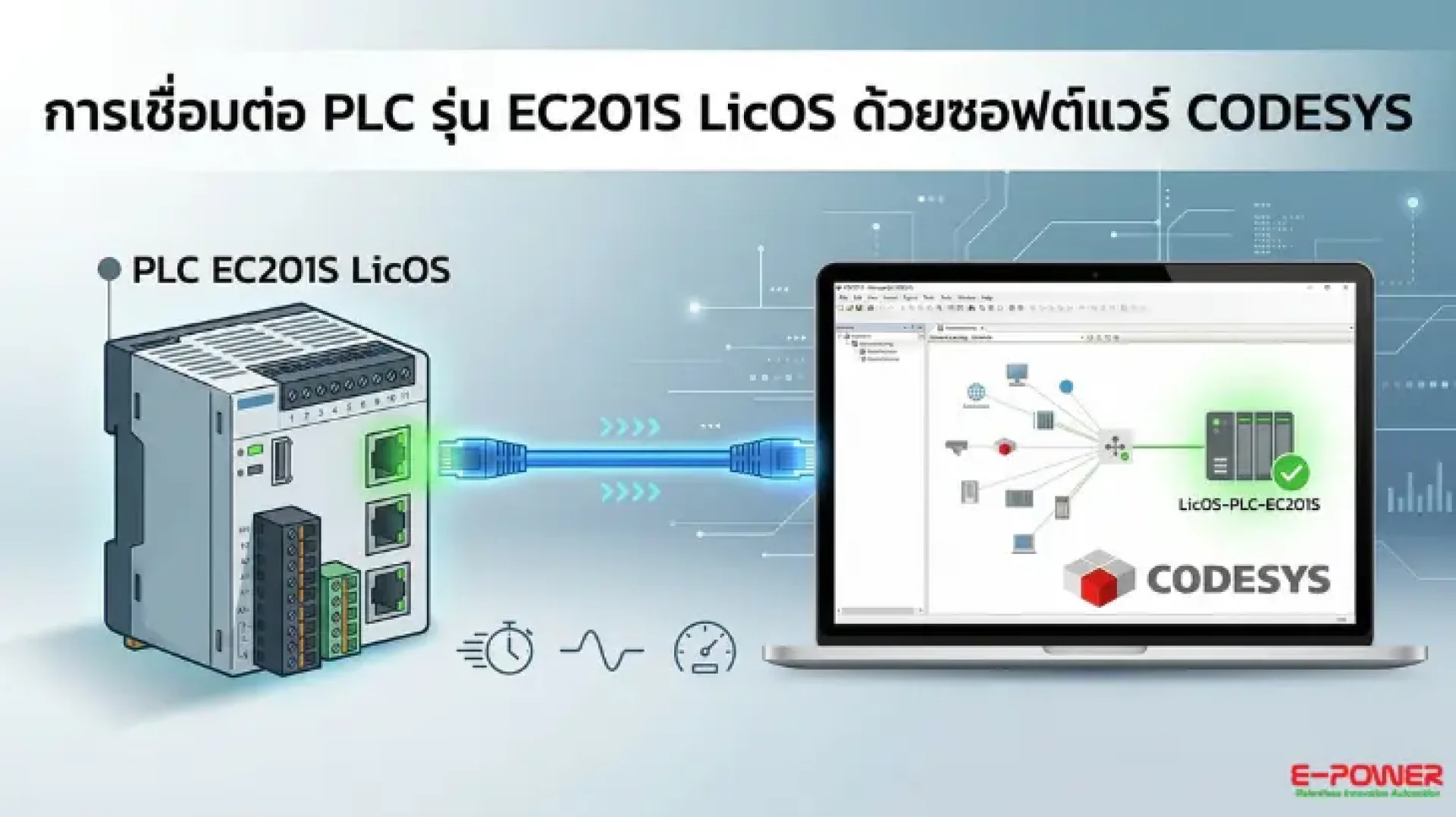
Connecting EC201S LicOS PLC with CODESYS software is a vital mechanism in the era of Industrial Automation. Rapid and seamless communication between hardware and software is a primary factor in enhancing machine efficiency. This article presents a solution designed for engineers and system administrators to connect EC201S LicOS PLC with CODESYS professionally. Through a low-complexity operational process, you can achieve stable communication signals and immediate readiness for automation systems, ultimately elevating machine control to be precise, fast, and highly efficient in the long term.
Why use EC201S LicOS PLC with CODESYS?
Utilizing technology that supports international standards like CODESYS software allows for high flexibility in control programming. When paired with high-performance hardware like the EC201S LicOS PLC, users receive the following benefits:
- High Communication Stability: Reduces issues regarding data drops or latency during transmission between the computer and the machine.
- Reduced Operational Time: The configuration and Scan Network processes are rapid, making it ideal for engineers requiring quick on-site system setup.
- Open Architecture Support: Programs are easy to modify and develop, ready for integration into Smart Factory systems.
Step-by-Step Guide: Connecting EC201S LicOS PLC with CODESYS
To ensure a smooth workflow, you can follow these configuration steps to connect the device to your PC:
1. Preparation and Device Package Installation
-
Begin by ensuring the connection cable between the PLC and your computer is securely and completely plugged in.
-
Open the CODESYS program. If you have not yet installed the package for this PLC model, the system will not find the device. Go to the Tools menu on the upper bar and select CODESYS Installer.
-
Important Note: You must close the main CODESYS program before starting the package installation.
-
Click Install File and select the PLC package file (LicOS_Card_PLC_Device). Wait a moment for the system to process, then click OK and I want to continue respectively.
2. Creating a New Project
-
Reopen the CODESYS program and select New Project.
-
Name your project and choose the desired File Location.
-
In the Standard Project window, under the Device menu, select LicOS-PLC-EC201S.
-
For the programming language (PLC_PRG), you can select a familiar standard language such as Ladder Logic Diagram (LD).
3. Network Scanning and Establishing Connection
-
Once in the project interface, double-click the Device menu in the left sidebar (initially, the right window will show the status "PC Not connected yet").
-
Click the Scan Network button to allow the system to search for the PLC device within the network.
-
When the system finds the device (the PLC's Target ID will appear), click to select it and press OK.
-
A security confirmation window will appear; check the Remember decision box and select No.
-
The connection circuit will then turn green, indicating that the PC and PLC are successfully connected and ready for immediate programming.
Summary
In conclusion, connecting the EC201S LicOS PLC with CODESYS software is a straightforward and systematic process. Mastering these configuration steps will enable you to connect EC201S LicOS PLC with CODESYS professionally, guaranteeing a setup that is easy to configure, provides stable communication, and is ready for immediate automation use. This results in elevated machine control precision, speed, and efficiency—providing excellent value for modern industrial factory investments.